
Reading Time: 8 minutes
I am about one-third of the way through the first run of my law practice technology course. It has been very useful as I am writing the teaching manual for my coursebook (coming out in about 6-8 weeks) and so I’m able to battle test some of the manual’s content. So far, the students have handled the course material much better than I had any reason to expect and I will raise my expectations of what they can handle. At the same time, teaching technology is perhaps the greatest challenge.
My first job out of law school involved managing law school technology. The Dean called me, mistakenly, the “Electric Services Librarian” and it reflected the focus of my work. Managing the law school’s website, running the network and servers, and making sure the faculty laptops — we secured a million dollar grant that gave all faculty laptops and upgraded the technology in a courtroom-style classroom — operated in the classrooms. I’ve seen the wall clocks run slow when too many student laptops plug in to the mains, futzed with Barco projectors that won’t respond to remote controls, and so on.
Just before I came back to Chicago, our library had to make some decisions about our educational technology. We had a pair of projectors, some microphones, and a cabinet full of switching equipment. It would have been pretty state of the art when it was acquired but was now no longer operable. In the end, we decided to e-waste the switching systems and went with a much simpler configuration. CLE and instruction presenters could choose a wall-mounted HDMI port and, depending on which one they used, they could project to either or both of the projectors. It eliminated the need for hardware switching, control panels and other button interfaces. I’m hopeful that it has worked out as well as we anticipated; it was certainly a cheap alternative to buying more Crestron hardware.
Until I came back to a law school two years ago, I hadn’t really thought much about how I would navigate the technology if I was using more traditional classroom environments. If anything, my experience so far is that classroom technology that is more powerfully integrated may create a rigidity that inhibits actually using it. Similarly, policies that involve classroom technology can lead to unintended consequences.
HDMI Everywhere
The first thing I noticed is that classrooms built around fixed technology credenzas may not anticipate alternative uses. On the one hand, I can walk into any classroom and fire up a web browser and use cloud-based resources. I can bring in a USB drive with a slide deck or other resources and work with the computer as a dumb terminal.
Neither of those is optimal, though. I am guessing everyone who works with lawyers will be juggling a number of passwords. I have a password manager. When I go into a classroom and use the built-in PC, I need to open my password vault on that computer and then log in to my work accounts. It creates a layer of potential failures if I ever fail to log out of any of those accounts. It’s not just me. I’ve been on two classroom PCs where I can see who the previous user was because it asks me if I want to log in as them, even when they have fully logged out.
Could I use a USB passkey? I don’t know. Since these are institutional devices, they are locked down. I’m not sure I could rely on that as an alternative authentication method and I would expect that, either at the hardware level or the software, I would not be able to configure — and then unconfigure — the settings any more effectively than I do right now.
This is particularly frustrating because the law school faculty, like most (all?) law students have laptops allocated to them. I do all of my work on a portable device. Ideally, I would use this laptop whenever I teach.
If I were planning educational technology in a laptop-first environment, I would definitely rethink whether a desktop PC is of any value. And, once I had eliminated that, I would consider whether any furniture or switching tools are really required. What seems far more important, and rudimentary, is just to ensure that there is a way to pipe audio and video to whatever projection and sound system is in the room.
This means that the HDMI connection needs to be exposed (or whatever the equivalent is going forward). If I have an HDMI cable, I can pipe my screen to the projector but, even better, I can use extended screens, keeping my private information (like where I store my passwords or my inbox which may have emails related to HR matters and the like) off the computer screen.
One classroom I was in had a loose HDMI cable. It was connected to a splitter within the furniture. This meant I could bring my laptop into my classroom and use both the fixed PC and the laptop. This had a load of advantages:
- our fixed computer podiums do not raise or lower. When I use the in-classroom furniture, I have to stoop or slightly squat to use the keyboard and mouse. If I have my laptop, I can place it on the adjacent accessible table and raise it to my keyboard height.
- I can run applications that are blocked by the fixed computer setup. For example, all of our classrooms record all class sessions. This means that the audio from the fixed PC and the video camera are locked into a recording app. While you could initiate Teams or Zoom on these computers, you can’t talk or be seen on those apps because the recording program has already taken control of those devices. I used the laptop to run a Zoom alternative when students couldn’t make it to the classroom but still wanted to participate in real time.
- I can also run applications that are blocked by the IT standardization protocol. For example, I have Chrome, Librewolf, Edge, Firefox, and Brave web browsers on my laptop. I use them for different things, have different extensions installed on them, and have configured them for productivity reasons. While those are all authorized apps, I can’t customize each classroom computer in the same manner.
When I taught bar essay writing, the bar was set pretty low. I mostly needed to be able to present a slide deck and a clock to help them practice essays. When I taught legal research, it was more complicated, because, while I can talk about how RECAP works with Courtlistener, I can’t show how to use the RECAP extension. Similarly, I ran into the password problem when getting into Lexis or Westlaw or any other secured research resource.
The legal research classroom did not have a spare HDMI cable like the essay writing class. It did, however, have an exposed HDMI port in the wall where the podium screen connected to the projector. To enable my use of my work laptop, I used an Anker HDMI splitter ($13 on Amazon) with a spare HDMI cable.
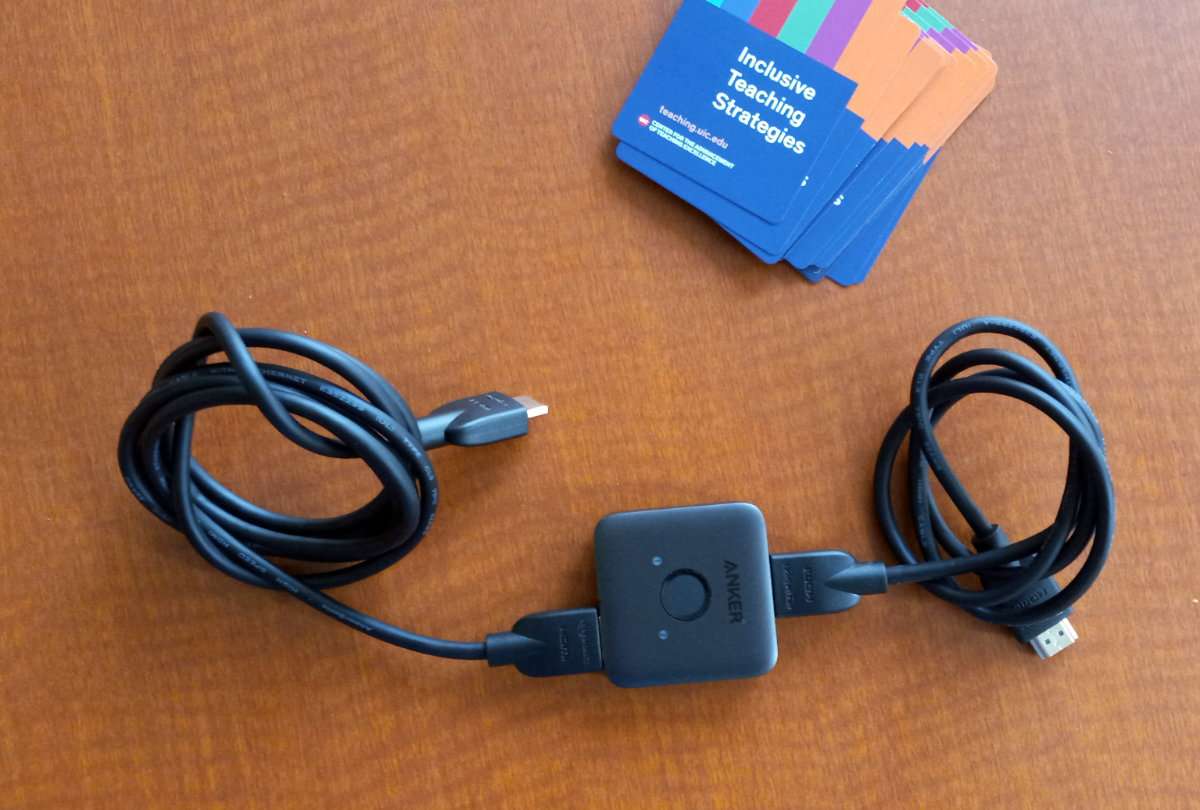
I carried this, with my laptop and power brick, to each class. I unplugged the HDMI cable from the wall, plugged it into my switch, plugged the switch into the wall, and plugged the loose HDMI into my laptop. This is so simple even a law faculty member could use it! I could then use both PCs, clicking the big round button in the middle to switch from the fixed PC to my laptop.
This had the upside that my use of a password manager and my work inbox were no longer visible on the fixed PC, which, if you’ll recall, is making a video recording of everything that appears on that screen. Imagine making a mistake and typing a password in plain text? Or opening your Office 365 account and having something confidential be visible, even for a moment. This little cable set up brought me a lot of peace of mind.
If I had my druthers, it would be to get rid of all of the podia, all of the fixed PCs, and put in accessible podia. They would have, on them or near to them, a wall-mounted HDMI port that could send the sound and video from whatever device attached to it. Even better, we already have accessible tables in every classroom adjacent to a podium and we could just use those.
Beyond the Slide Deck
This semester, my class is in a room where there is no exposed technology. I am at the mercy of the PC allocated to the room. This wouldn’t be ideal if I was teaching primarily from slide decks. It’s very challenging when you are teaching a class about law practice technology and are unable to demonstrate some basic technology concepts.
In fairness, we are able to do a lot online. The students did amazing work with PowerAutomate, creating some very interesting workflows. A few worked in law firms already and had very specific practice-oriented problems they wanted to solve. While it might have been nice to explore the PowerAutomate Desktop but we were not focusing on it enough to matter.
One thing I had not planned out completely and initiated after class had started was to create a shared Teams site. I had to be very clear that we were not going to be using it instead of our learning management system, Canvas. But by initiating a Teams site, we now had a SharePoint file platform, a shared OneNote environment, and all of these (including Teams) were exposed to any PowerAutomate workflows a student would want to try. It was useful to have this sandbox available for them. It also meant that, rather than each student trying to spin all of that functionality up on their own, I could manage it for them and also intercede if something wasn’t working quite the way they’d anticipated. I can flush it at the end of each semester too, and so it doesn’t need to be recreated each semester.
Once you leave the web browser, though, things become a bit trickier. Fortunately, a lot of what we want to do relies on Office 365 apps. We spent a lot of time in Excel already — more than I had planned but the students asked specifically for greater exposure, based on conversations they’d had with employers — and will also be in Word quite a bit. The web-based apps for those programs are nowhere near functional for what a lawyer needs to do. The 80/20 rule that guides their functionality means that a lot of the powerful tools are just not visible until you are in the desktop app.
This is particularly true with Microsoft Outlook. Let’s put aside, for now, the abomination that is Outlook New and focus on Outlook Classic. At some point, lawyers and law students will need to move to the new version but I wouldn’t recommend it until the features have caught up. But I would not want to risk opening up Microsoft Outlook and logging into it on a shared computer. There is no way to know what it will download and leave behind and it will lack all the configurations (like turning off notifications, for one thing) that I would want to make before using it in a classroom. It would be a privacy and operational catastrophe waiting to happen.
This means that some of the configuration options can only be shown by way of screenshots from my office PC or, more commonly, from my home PC where I can create a very clean environment for screenshotting. The ability to show students where to add RSS feeds in Outlook’s account settings — and the difference between account settings and account options, of add-ins and apps — is much clearer in the desktop application. In some cases, some functionality just isn’t visible on the web client and has to be configured on the desktop if at all.
In some cases, the software is installed but the functionality is restricted. We were talking through the internet’s underlying foundation, things like DNS, and I wanted to show them some of the ways they could know how their system was configured. We all were able to fire up terminals, both in Windows and on Macs, and run ping tests, trace routes, and look at our ipconfig outputs.
Then I turned to the web browser to talk about how the browser itself has DNS configurations that can override the device. This can be really useful if you are on a machine whose DNS you can’t control (like a device that has connected to a public wireless network in a courthouse) but want to still use your own encrypted DNS. Unfortunately, while I could get to the setting in Edge and Chrome, corporate IT group policies had disabled the ability to change those settings.
This results in more hand-waving and screenshots than I would like. If the students are following along, they may be able to see more than I can show them. But I have found that students who are using a web browser where they have logged into their student account will find that web browser locked down. It requires them to run a separate browser or to put aside additional time at home to experiment on their own. I’m not sure that’s viable.
I had not planned to spend any time on a lot of law-specific commercial products. I think a good handle on common technologies will get them further than deep dives into the #LegalTech product-of-the-day. But I am realizing now that, unless it was 100% in the cloud, it would probably be unworkable beyond a dog and pony show. This is something I have tried to avoid because I know that “inviting in the vendor to showcase their product” is a common way to connect law students to legal technology. Unfortunately, that seems to be very common when it comes to the legal publishers and I can only imagine that other legal technology vendors would be interested at a similar opportunity. It gets away from the fundamental premise I have for my course, which is that the technology is really not as important as the processes.
I am going to have to keep thinking about this. In the first class, one student mentioned Teamviewer and that has been itching at my brain. I am wondering if I can set up a virtualized computer (either my personal computer running Teamviewer or a proper virtualized HyperV/VirtualBox computer) so that I could connect to it live during class. Since I could most likely run the virtualized system through a web browser display, it might solve a lot of these problems. It would also allow me to create a law firm-like environment that I might even be able to copy over for students to spin up (or access) individual copies of. But it is good to start seeing what works and what needs work without seeing any unsurmountable challenges. I do wish I could have easy HDMI access everywhere, though!