
Reading Time: 6 minutes
I taught legal research and writing last year and had created some mock documents for the final assignment, an open memorandum. The topic was police interrogations and so I created a fake police report, using a template from a local Illinois county sheriff’s department. It was great, because the report really provided all the detail I needed the students to know. As I was getting ready to teach this course again, I opened the document to update it and prepare the course materials. I was surprised to find that I couldn’t. A SharePoint function called sensitivity labels was blocking my editing.
In the before times, there was Microsoft OneDrive and Microsoft SharePoint. A consumer OneDrive user will not see the underlying SharePoint but corporate users might, especially if they are looking for it. When I arrived in Illinois, I noticed that my OneDrive shortcut took me to a Sharepoint.com. The OneDrive interface is the same as a consumer’s but lacks the visible options that a SharePoint team documents site offers.
Ruffling the Feathers
That isn’t to say that the options aren’t there. If you poke around enough, by going first to your OneDrive settings and then scroll down and “return to the old Site Settings page”. Then you can start to tinker with the OneDrive site and turning on functionality that might be on a SharePoint site.
This was helpful because the issue I had come across was that somehow, this document and who knew how many more, had been tagged with a sensitivity label. SharePoint has a bunch of cool metadata and policy management functions, when used correctly. You can apply records retention labels that can be absorbed into automatic workflows. You can set legal holds. I have not used sensitivity labels before and I don’t believe they’re available or configurable on a consumer OneDrive.
What I did know is that I had not applied it and it wasn’t clear to me why someone else would have. I also had not heard about Microsoft Purview, which appears to be the policy managing app (and I only learned about through my attempts to remove the sensitivity label). Someone had triggered an automation on the SharePoint instance and my document, called Police Report and containing a fake driver’s license number, had somehow been captured.
I was not surprised to find that there is no clarity for the user. If I open the Word document in the desktop app and go to document properties, I can see that there are restrictions set. There is no explanation about who set them and there is no option to undo them. It seems to also depend on the device. Although my home PC has “policy tips” turned on in Microsoft Word, I don’t see a policy tip explainer. On my work PC, I do.
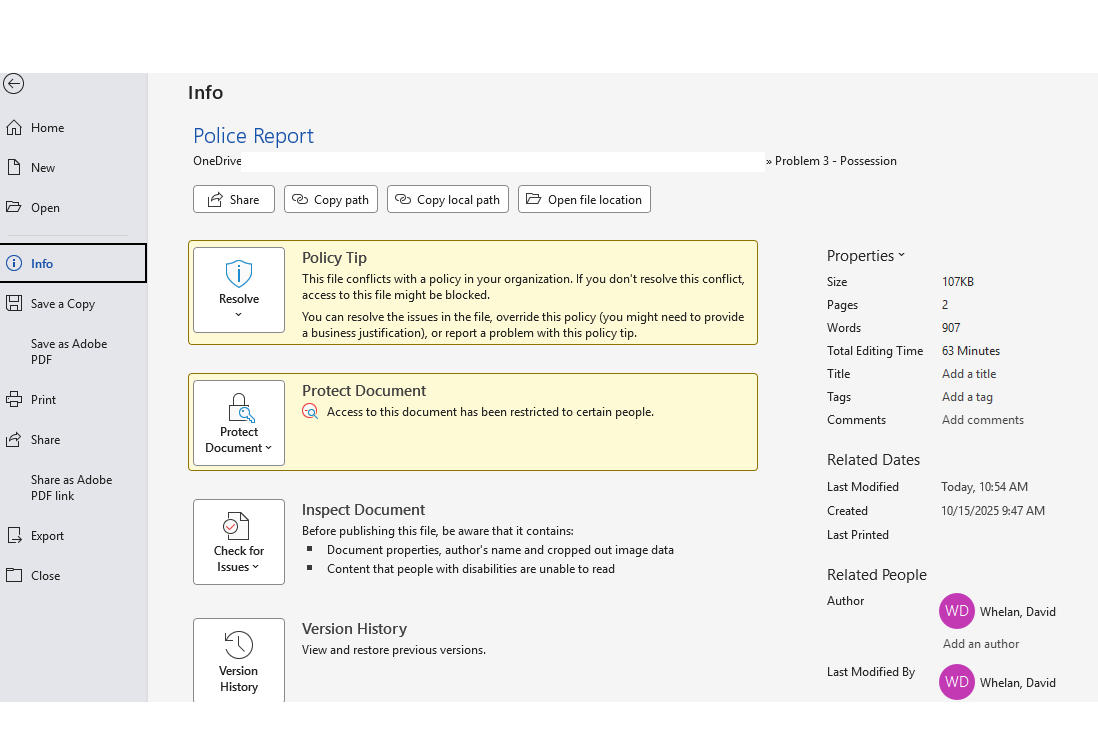
This was also where I started to experience conflicting labels. I am listed as the author on the document. However, the content owner is someone else and is, I am assuming, a SharePoint administrator (or admin group). The difficulty this presents is that I do not know who that person is and I cannot explain to any IT staff who are not involved in SharePoint why I am the author but not the owner. If anyone looks at the properties of the document at the file level, they will see me listed as owner. They will see, on the properties > security tab of the document, that I have full control.
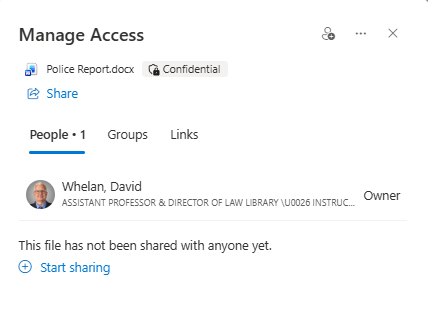
In other words, it’s unexplainable.
It was time to start poking around beneath the hood. I will admit, it’s not clear to me whether this is supposed to be exposed or not. At one organization I worked at, the IT team was clearly not able to administer the on-premises SharePoint instance we were running. I figure there’s a 25% or better chance that this either can’t be turned off or is too far down in an implementation that the admins don’t really know it’s there. When you reach the site settings for your personal corporate OneDrive, if that makes sense, some of them are broken; you click a link and either Microsoft has retired the functionality or I don’t have access or it just 404s, as if the site setting shouldn’t even exist any longer.
Let me say at this point that calling them “sensitivity” labels seems like a poor choice for what are essentially classified information levels. While our law school may not have “top secret” documents, calling documents “classified” seems clearer to me than saying they are “sensitive”. This is particularly true because we are a public institution, so pretty much everything is going to be a public record if it’s a record. I’d use “classified” or “restriction” instead of “sensitivity” and then use labels like FERPA, PII, and so on to help people understand what the restriction is.
But one of the things I could do was navigate to view customization and turn on the sensitivity label column. I had to return to a Classic OneDrive view before I could add the column. I could also navigate to Site Settings and then Site Libraries and Lists.
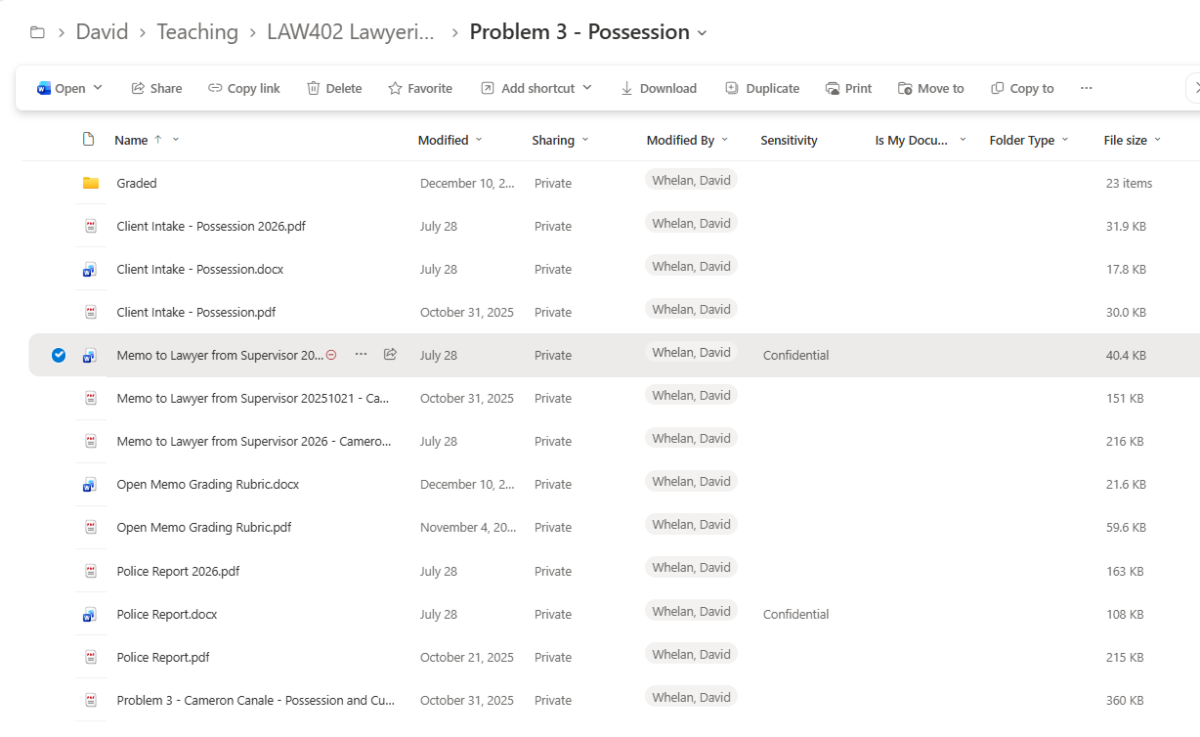
In the end, I customized the view to add a Sensitivity column and returned to my files to see what was what. There was only one other document that had been labeled in this manner. That was helpful, because now I knew the scope of what I was dealing with and what work arounds to consider.
I uploaded a bunch of variants on the file—swapping out the fake driver’s license number for a fake social security number and a fake credit card number—to see what happened. I also forced the default label on all new files to be Public because I wanted to see if that would cause a collision or would it be overwritten by the site-wide policy that appeared to be running.
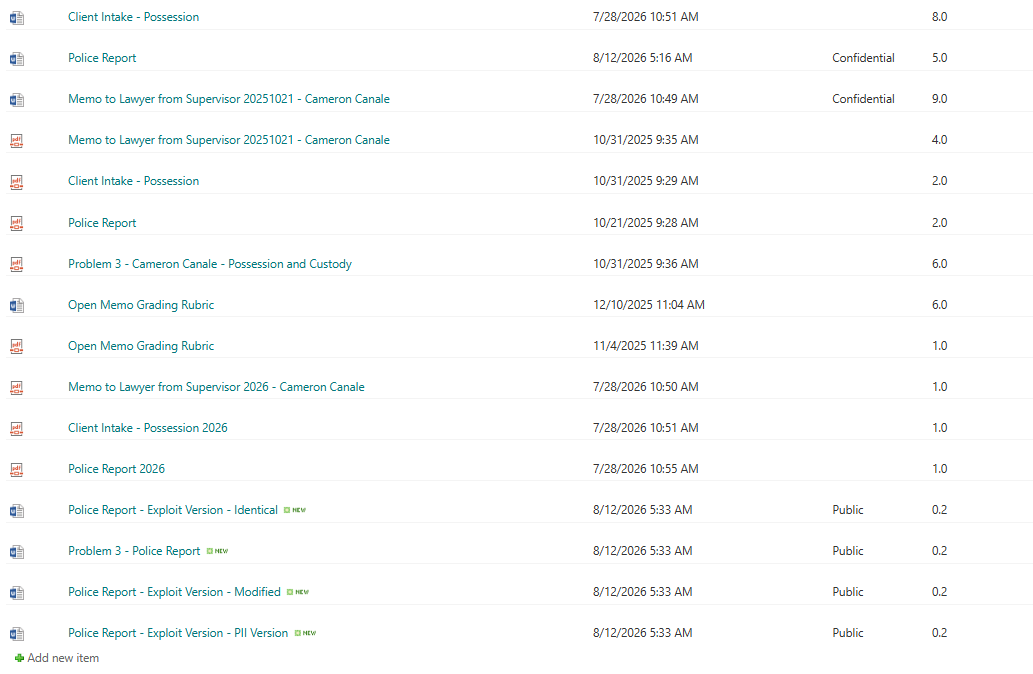
In many cases, policies like that run over night so I left it to percolate. Sure enough, a couple days later when I went to check, all of these fake documents are now labeled Confidential through whatever automated process is being used. I am not sure why it has incremented up a number on the version, either. That’s something new to investigate.

Breaking Out
The goal, then was, to break out of the limitations the label applies. Once applied, the underlying file is altered. For example, if you take a clean Microsoft Word document and save it, it will save with a .docx extension. If you rename the file to .zip, you can open it and explore its component parts. You can see code and images and other elements.
If the file has been labeled, you get mixed results. A file renamed to .zip that has a Confidentiality label has been encrypted. Microsoft’s compressed folder function will fail, warning you the file is empty. Not true.

If you use a decompression app like the open source 7Zip (which I recommend always having on hand, as it is very versatile), you can see the encrypted files within the renamed Word document that has a label applied.
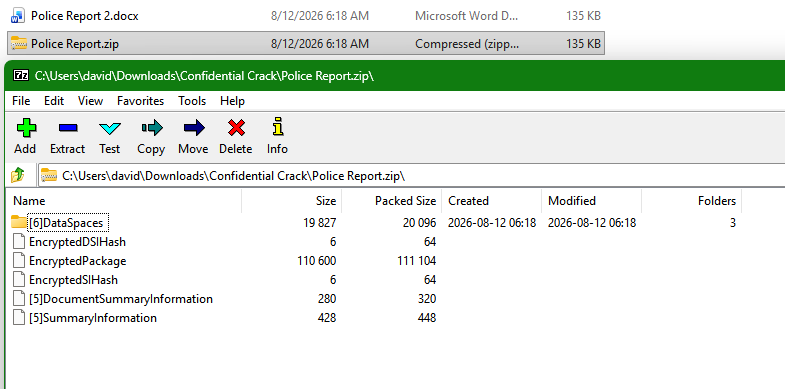
This was helpful because I now knew I couldn’t really extract the elements I wanted from within a wrapper. The file is encrypted until it’s opened and, once opened, the file itself is protected. I needed to find another way to work with the file and the easiest is to open it so it’s decrypted. Time to grab a copy.
The first I approach I made was just to print to PDF, using the Adobe PDF printer (distiller) to create the output PDF. My whole goal was just to merge this document into a larger PDF packet, so this step would solve that problem for me.
This appeared to be restricted when I opened it in the Microsoft Word web app. This does not appear to be accurate.

You cannot download a PDF from the Word web app, that’s true. You also get an error if you attempt to open it in a Word desktop app from the Editing menu in the web app.

This is either a bug in Microsoft SharePoint or, more likely, poorly implemented policies. If you close the document in the Word web app and click on the document in SharePoint, you can select Download a Copy. This will place a Word version on your device. Just open it.
If I open the Word document, it knows the server from which it came, and from which the encryption was applied. It will prompt you to log in to your server to apply, I assume, the latest label or security. You can click the X at the top right corner of this login prompt and the file will open without you having to log in. It will retain the security protections but at least you can work on it.
This is just a document so it’s not very hard to get the contents out. The security label has blocked all exporting but not cutting and pasting. Once I have the file downloaded, I can select all and cut and paste into a new, blank Word document. Since I’m not working with a logged in account, the server doesn’t know the document exists. Also, the labels are not applied immediately (or, if they are, it’s not immediately visible). From the metadata, it looks like the university is using the Varonis app to apply the settings. In my document details, I can see that a Varonis agent applied the sensitivity label on my behalf.

The fundamental rule is that, if you can see the contents of some object, you can make a copy. This was easier than I thought—cut and paste—but I can also print to PDF, and then edit the PDF or export it to a Word document to bypass the security labeling. Once the object has been decrypted to be visible in Word, it is decrypted for everyone and every purpose.
My backup, which I use when I’m working on a tablet or phone that attempts to prohibit screenshots, is to hold up a camera to it. You can use a product like Microsoft Lens or Fairscan to scan it like a page in a document. At that point you can create a clean PDF or OCR it into a new document. The whole idea of blocking screenshots is dumb because if someone’s eyes can see it, another camera can too.
As you can see, this problem hasn’t been resolved by main campus IT security. More documents are getting labeled, not fewer. But now I have more information about what is going on. Also, I have been able to extract my documents and will keep them off SharePoint until the solution presents itself. This is not great because it discourages use of central storage for corporate documents. That is an IT problem, though, and one I’m sure they’ll solve sooner than later.